 Dedicated Support
 Safe & Secure online payment
The plugin is not working on my website and the fee is not been applied.
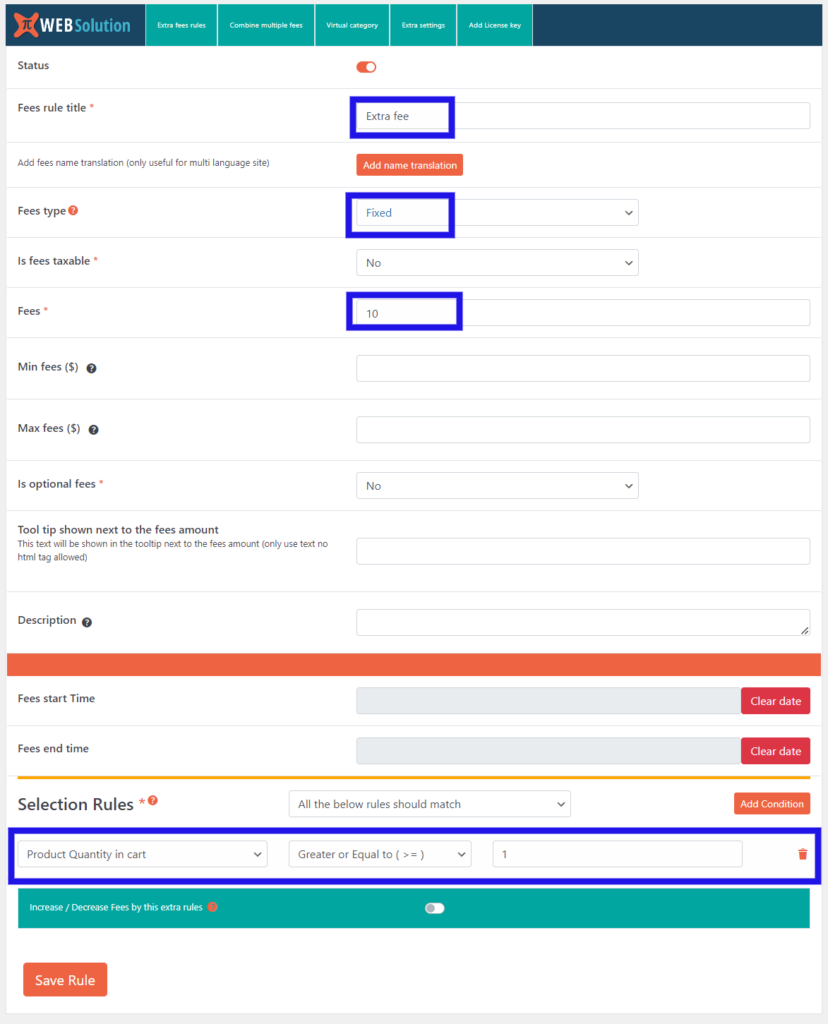
To make sure the plugin is working fine you should test with this basic fee (as shown in the below screenshot).
If this fee is been applied on your website that means the plugin is working correctly, and you need to recheck the conditions that you have configured in your fee. As until the conditions are not satisfied fee will not be applied.
You can email us the full-page screenshot of your configured fee along with an explanation of what you are trying to configure on sales@piwebsolution.com and will help you out with the configuration.
The basic working of conditional fee
The conditional fee rule consists of 3 parts as shown below, out of this 3 parts Basic setting and Selection rules are the main part, and Increment/Decrement fee is an optional part

Basic settings
In the basic setting, you configure the name of the fee and the fee amount apart from that there are some other settings but they are optional and can be used as per your need.
Selection rules
This is an important part that decides when the fee will apply. In this, you can add multiple rules that decide when the fee will be applied. By default, this part applies the fee when all the rules added are satisfied, but you can configure it to apply the fee even when one of the rules gets satisfied
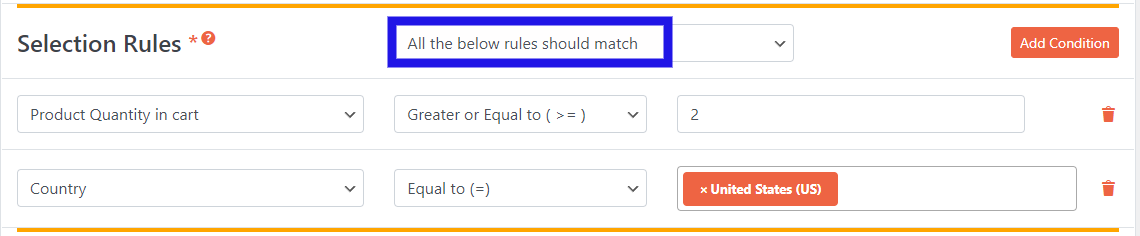
E.g: You can add a rule to apply a fee when the quantity of products In the cart is more than 2 AND the user country is the USA
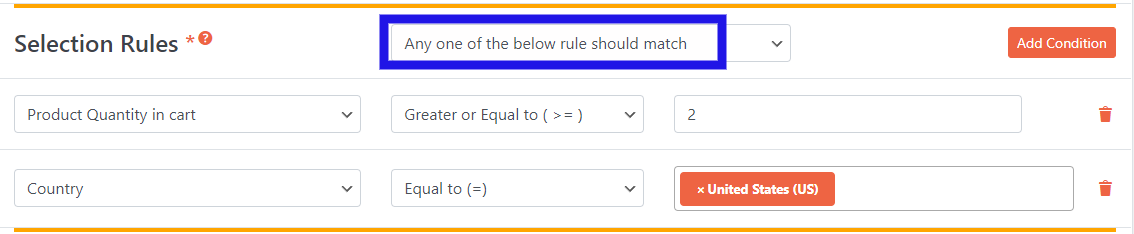
E.g: you can apply a fee when the user has purchased more than 2 units OR he is from the USA
We have around 33 rules that you can use in this selection rules section as per your requirement
Increment/Decrement fee section
This is an optional section but it allows you to adjust the final applied fee. A resulting fee of this section is added or subtracted into the fee amount configured in the Basic settings section.
E.g: You want to apply a fee of 10 to all the orders, but you want the fee to be 20 If the purchased quantity is more than 10 but less than 20, and if it is more than 20 then make the fee Zero
To achieve this you will configure it like this
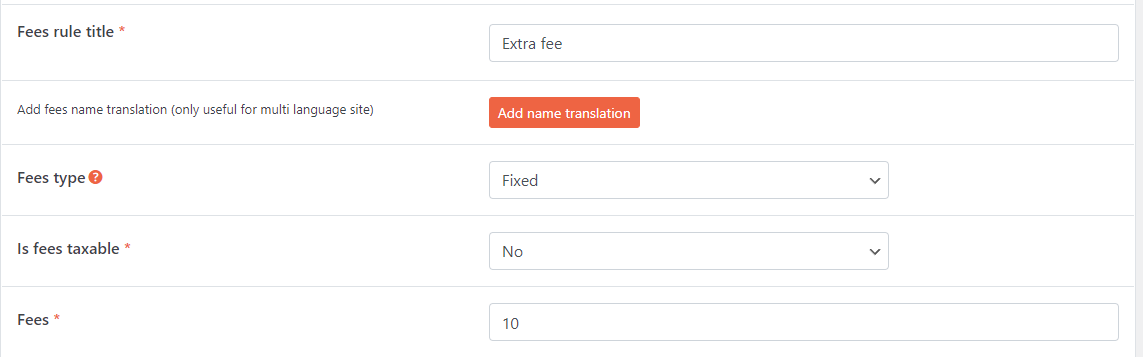
Basic section configuration:
Selection rule configuration:

Increment/Decrement section configuration:

Case 1: When a user had 2 products in the cart
the fee will be 10 (from basic config)
Case 2: When the user had 11 products in the cart
the fee will be 10 (from basic config) + 10 (increment/decrement config) = 20
Case 3: When the user had 23 products in the cart
the fee will be 10 (from basic config) – 10 (increment/decrement config) = 0
When the fee is 0 or negative the fee will not be applied
Combine multiple fees
As the name suggests this feature allows you to combine multiple fees and show them as a single fee in the order.
E.g: say you have created a fee for payment gateway processing charge of $1 and you have another fee for a bulk quantity purchase of $2
if a customer is liable to pay both the fee he will see 2 different fees applied to his cart, using the combined fee feature you can make them a single entry in his order instead of 2 separate fees
Virtual category
It is a group of products based on the category, shipping class, or attribute of the product.
This can be made in 2 different ways:
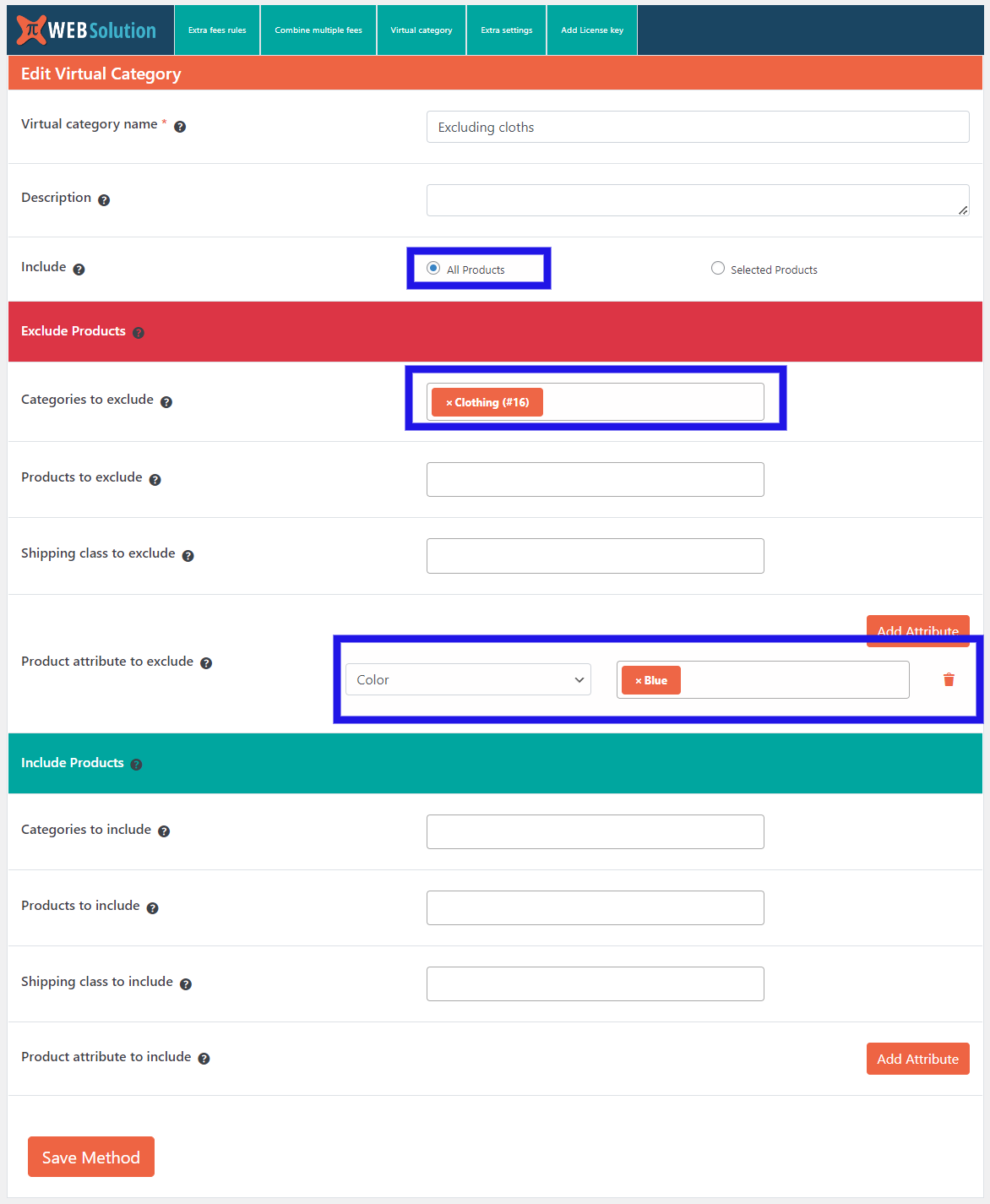
All products: All the products of the site are in the group and you exclude certain products from this large group.
E.g: Below is an example of a virtual category, that consists of all the products of the website excluding products belonging to the category cloth and any product with an attribute color set to Blue.
Selected products: In this, only the selected product is part of the group
E.g: This is a virtual category consisting of any product with the attribute size set to Large

The attribute feature only works on the attribute that are registered attributes in
WooCommerce > Product > Attribute section
