 Dedicated Support
 Safe & Secure online payment
Basic setting
You will find the plugin setting page in Woocommerce > URL Coupon
Activate URL Coupon Feature
Enable this to allow coupons to be applied automatically via specially crafted URLs.
Example: https://yourstore.com/?apply_coupon=SUMMER10
Coupon URL Parameter
Set the URL query key that triggers coupon application.
Example: If set to apply_coupon, the URL ?apply_coupon=SAVE20 will apply the SAVE20 coupon.
Message: Coupon Saved in Session
Shown when a coupon is stored in the user’s session and waiting for conditions to be fulfilled before it’s applied.
Message: Conditions Not Yet Met
Displayed when the coupon’s conditions aren’t met yet. Use this to explain why the coupon isn’t active.
Hide Cart Page Coupon Box
Remove the coupon input field from the cart page to simplify the checkout flow or force URL-based application.
Hide Checkout Page Coupon Box
Remove the coupon input field from the checkout page to limit manual coupon entries.
Coupon Setting
The following options are added by this plugin and will appear when you create or edit a WooCommerce coupon.
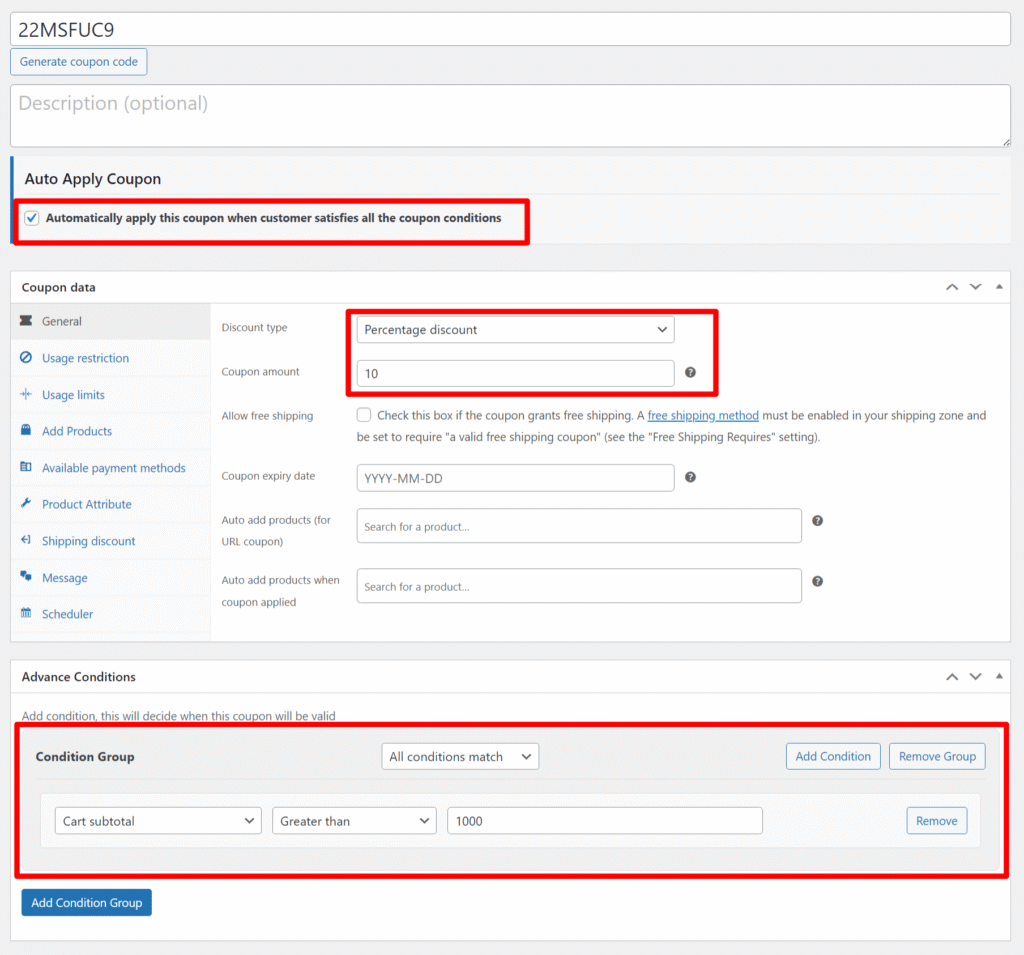
Auto Apply Coupon
Automatically apply this coupon when all its conditions are met — no need for the customer to manually enter the code.
Example: Auto-apply a 10% discount when the cart total exceeds $1000.
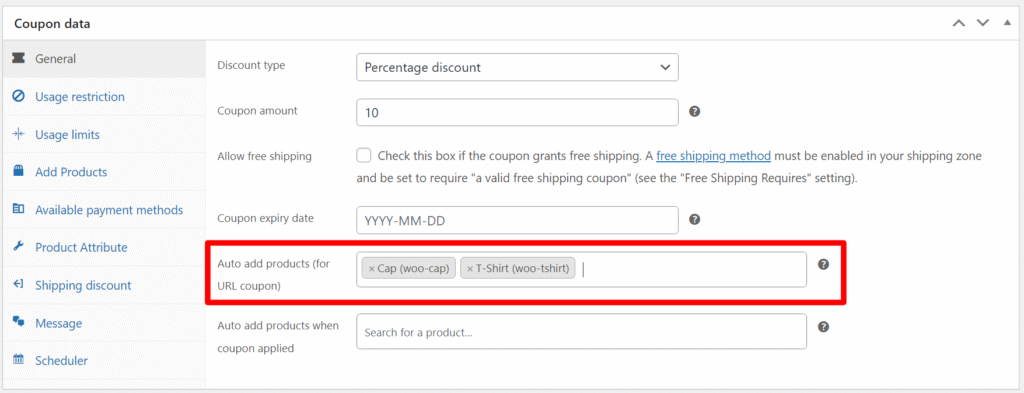
Auto add products (for URL coupon)
Select products to be automatically added to the cart when a customer visits the coupon URL.
Note: This works only when the coupon is applied via URL, not when entered manually.
Example: Add a free sample product when a customer visits ?apply_coupon=FREESAMPLE.
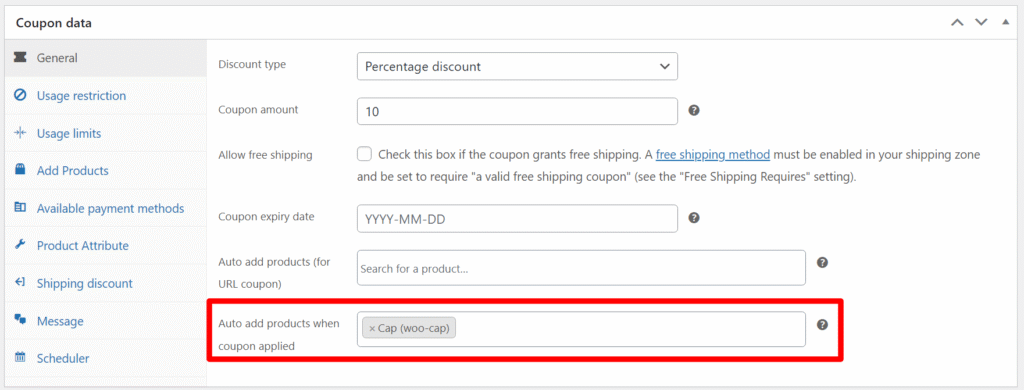
Auto add products when coupon applied
Select products to be automatically added to the cart when the customer applies this coupon, either manually or via URL.
Example: Add a bonus item when the coupon BONUS10 is applied.
Usage Restriction
Following settings are present in the Usage Restriction section of the WooCommerce coupon
Excluded emails
Enter email addresses to exclude from coupon usage. Separate multiple addresses with commas.
You can use an asterisk (*) as a wildcard to match patterns.
Example:
abc@yahoo.comexcludes one specific email*@gmail.comexcludes all Gmail addresses

User role
Restrict this coupon to specific user roles by selecting them here. Only users with the selected roles will be able to apply the coupon.
Example: Allow only “Subscriber” or “Shop manager” roles to use the coupon.

Excluded User Role
Select user roles that should not be allowed to apply this coupon. Users with these roles will be restricted from using the coupon.
Example: Exclude the “Subscriber” roles to limit coupon access.

Billing Country
Restrict this coupon to customers with specific billing countries. The coupon will only apply if the customer’s billing address matches one of the selected countries.
Example: Allow coupon usage only for customers billing from United States.

Payment Method
Restrict this coupon to specific payment methods. The coupon will only apply if the customer selects one of the chosen payment options during checkout.
Example: Apply a discount only when the customer chooses “Cash on Delivery” as the payment method.

Day Restriction
Limit the coupon’s usage to specific days of the week. The coupon will only be valid on the selected days.
Example: Make the coupon available only on weekends (Saturday and Sunday).

Usage Limit
Following setting are present inside the Usage Limit section of the WooCommerce coupon
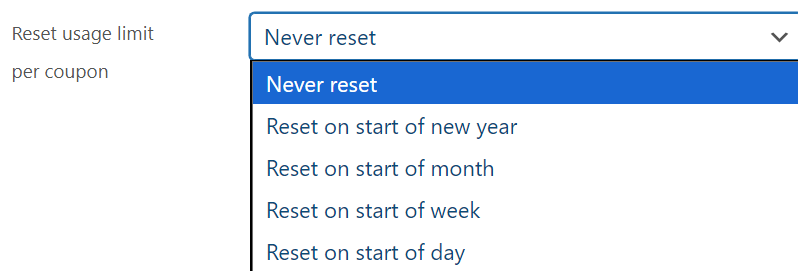
Reset Usage Limit per Coupon
Automatically reset the coupon usage count based on the selected interval. Useful for recurring promotions.
Options:
- Never reset – Usage count will not reset.
- Reset on start of new year – Resets on January 1st each year.
- Reset on start of month – Resets on the 1st of every month.
- Reset on start of week – Resets every Monday.
- Reset on start of day – Resets daily at midnight.
Example: Use “Reset on start of month” to allow 100 redemptions per month.
Reset Per User Limit
Automatically reset the usage limit per user based on the selected time interval. This allows users to reuse the coupon periodically.
Options:
- Never reset – User usage count will not reset.
- Reset on start of new year – Resets user-specific usage on January 1st each year.
- Reset on start of month – Resets on the 1st of every month.
- Reset on start of week – Resets every Monday.
- Reset on start of day – Resets daily at midnight.
Example: Allow each user to use the coupon once per week by selecting “Reset on start of week”.

Add Products
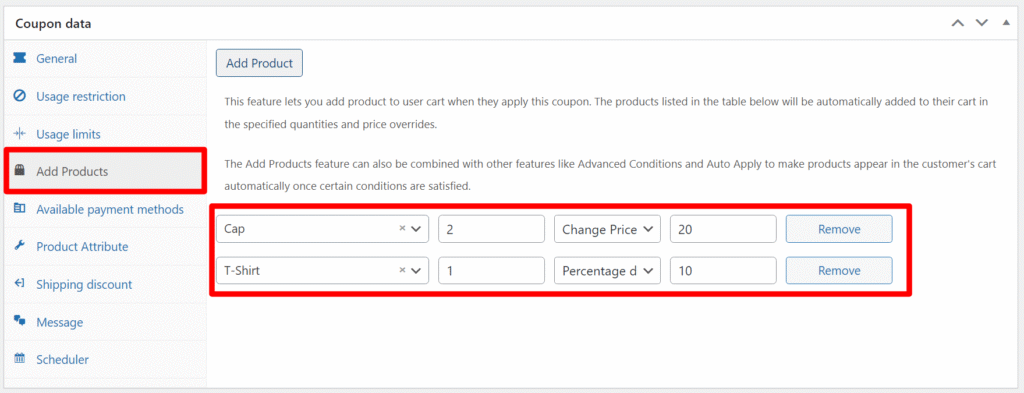
This feature lets you automatically add products to the customer’s cart when they apply the coupon. You can specify the quantity and optionally override the product price.
The added products can appear at a fixed price or with a percentage discount, depending on the settings you choose.
This can be combined with features like Advanced Conditions and Auto Apply to make the products appear only when certain criteria are met.
Example:
- Add 2 Caps at ₹20 each
- Add 1 T-Shirt with 10% off
Available Payment Methods
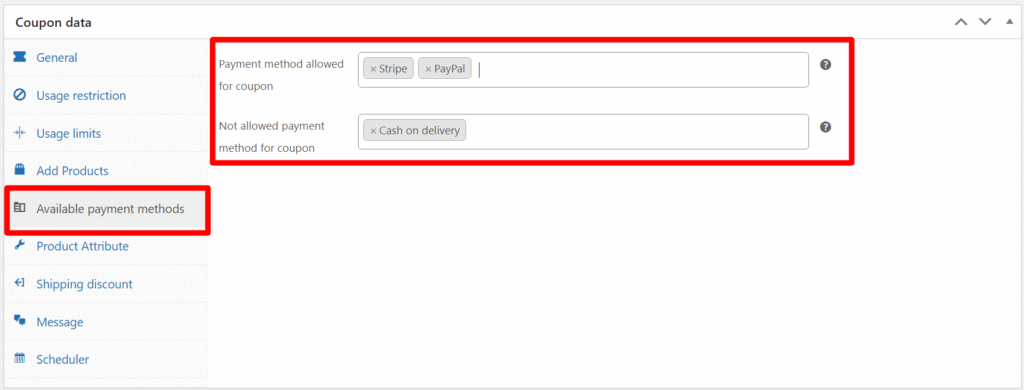
Control which payment methods are shown to the customer when this coupon is applied.
Payment Methods Allowed for Coupon
Select the payment methods that should be available at checkout when this coupon is applied.
Example: When this coupon is used, only “Stripe” and “PayPal” will be available.
Not allowed payment method for coupon
Select payment methods that should be hidden at checkout when this coupon is applied.
Example: Hide “Cash on Delivery” when this coupon is active.
Thanks. Here’s the updated Shipping Discount section with all 3 discount types:
Shipping Discount
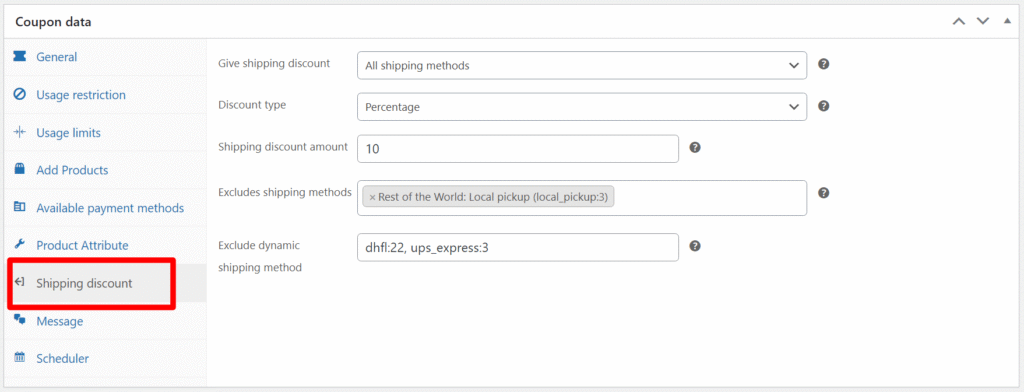
Use this section to apply a discount specifically to shipping methods when this coupon is used.
Discount Type
Select how the shipping discount is calculated:
- Percentage – Applies a % discount to shipping.
Example: 20% off shipping cost. - Flat Discount – Deducts a fixed amount from shipping.
Example: $5 off total shipping cost. - Overwrite Value – Replaces the shipping cost with a fixed value.
Example: Set shipping cost to $0 or $10 regardless of original cost.
Shipping Discount Amount
Enter the discount value according to the selected type.
Exclude Shipping Methods
Select shipping methods that should not receive the discount.
Exclude Dynamic Shipping Method
Enter IDs of custom or third-party shipping methods to exclude from the discount logic.
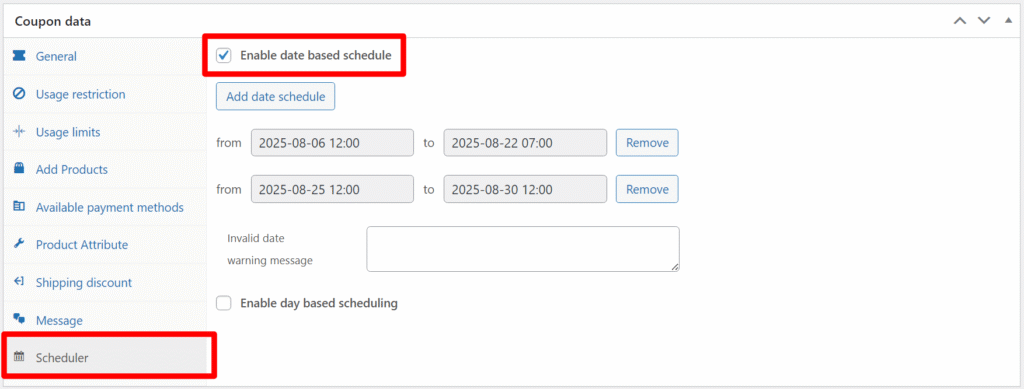
Scheduler
Enable scheduling to control when the coupon is active. You can choose one of the following modes:
Date Based Scheduling
Activate the coupon for specific date and time ranges. Add multiple ranges if needed.
Day Based Scheduling
Activate the coupon on selected days of the week during specific time ranges. You can set different time slots for each selected day.
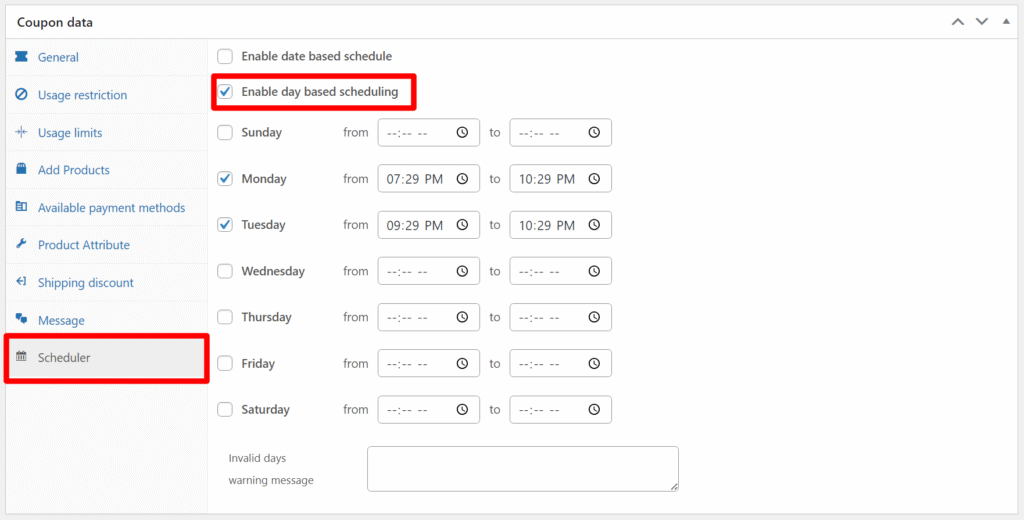
Note: Only one scheduling type (date-based or day-based) can be active at a time.
Free/Discounted Lowest Item
Automatically apply a discount to the cheapest item in the customer’s cart when this coupon is used — no manual product selection required. Choose whether “cheapest” is determined by unit price (per-item price, ignoring quantity) or line item total (unit price × quantity), then set a fixed amount or percentage off. The discount is recalculated live as the customer updates cart quantities, so the correct item always gets the discount — even if quantity changes shift which item is cheapest.
Scenarios you can build with Advance conditions + cheapest-item discount:
- Buy 2+, get the cheapest one free/discounted — condition:
Cart quantity ≥ 2(exactly what’s in your screenshot), discount: 100% (or 50%) on cheapest unit-price item. Classic “buy more, save on one” mechanic without needing BOGO product-pairing setup. - Spend threshold reward — condition:
Cart subtotal ≥ ₹X, discount: fixed/percent off cheapest line-item. Encourages basket-building — customer adds more just to cross the threshold, and you don’t lose margin on the expensive item. - Category-based bundling incentive — condition:
Product in category = "Plugins"ANDCart quantity ≥ 3, discount on cheapest item. Useful if you want to push customers to buy multiple plugins from a specific category, auto-discounting whichever they’d value least. - First-time customer nudge — condition:
Customer role = Guest/New customer(if your conditions support this) +Cart quantity ≥ 2, auto-applied without needing a code — reduces cart abandonment friction since there’s nothing to enter. - Clear low-quantity friction on multi-buys — condition:
Cart quantity ≥ 5, discount 100% on cheapest — effectively a “buy 5 get 1 free (cheapest)” that auto-selects the item instead of making the customer pick, which avoids the common complaint of “why do I have to buy a specific item to get it free.” - Weekend/scheduled auto-promo — combine with your existing Scheduler tab: enable this coupon only Fri–Sun, auto-applied,
Cart quantity ≥ 2condition, cheapest item discounted. Turns it into a recurring weekend promo with zero manual admin work once set up.
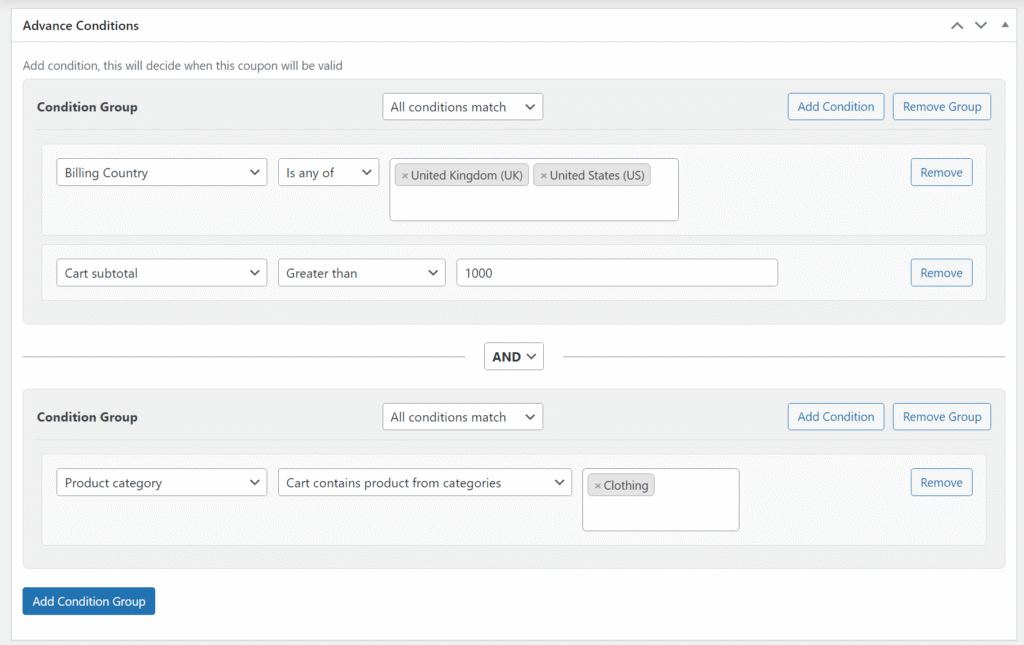
Advance Conditions
This documentation explains how to use the Advance condition Logic feature within the WooCommerce coupons. This feature enables you to apply advanced restrictions and conditions for coupons using groups of rules.
✅ Overview
This feature allows you to create conditional logic for coupons based on customer, product, cart, location, and time parameters. Each coupon can have multiple condition groups, and each group can contain one or more rules.
🔄 Condition Logic Types
You can define how the system evaluates conditions using two logic levels:
- Group Logic: Decide whether all conditions in a group must match or any one condition.
- Global Logic Between Groups: Decide whether all groups must match or any one group.
➟ How to Add Conditions
- Go to the Coupon Edit Page.
- Scroll to the Advance Conditions section.
- Click “Add Group” to add a condition group.
- Inside each group, click “Add Condition”.
- Choose the Condition Type, configure its parameters, and save.
📄 Available Condition Types
Conditions are grouped under categories:
🌐 Location-Based
- Billing Country
- Shipping Country
- Shipping Zone
👉 Product-Based
- Product Category in Cart
- Product Quantity in Cart
- Product taxonomy
- Product Meta data
🚚 Cart-Based
- Cart Subtotal
- Cart Weight
- Total Product Quantity
- Coupon Already Applied
👤 Customer-Based
- User Role
- User Login Status
- Total Orders Placed
- Total Amount Spent
- Previously Purchased Categories
✅ Example Use Cases
- Only allow coupon if customer is logged in and cart total is over ₹1000
- Apply discount only to first-time buyers from India
- Target coupons to users who previously bought a product from “Winter Collection”
⚡ Tips
- Use Group Logic to combine similar conditions (e.g., multiple product categories).
- Use Global Logic to allow flexible OR conditions between groups.
- Leave condition groups empty if you don’t want to restrict by conditions.
❓ FAQs
Q: What happens if no conditions match?
A: The coupon will not apply.
Q: Can I mix AND and OR logic?
A: Yes. Each group has its own AND/OR logic, and groups themselves can use AND/OR.
Q: Will this slow down checkout?
A: Conditions are optimized to load only relevant rules. Performance impact is minimal.