 Dedicated Support
 Safe & Secure online payment
Introduction
Hide Shipping Method conditionally for WooCommerce PRO lets you hide selected shipping methods on the cart and checkout pages when conditions you define are met.
WooCommerce always shows every shipping method that is available for a zone. That is not always what you want. You may not offer free shipping on small orders, you may not want local pickup for international customers, or you may not want Cash on Delivery orders to use your fastest (and most expensive) courier.
With this plugin you can:
- Hide shipping methods based on cart total, quantity, or products in the cart.
- Hide shipping methods based on shipping or billing country, state, or postcode.
- Hide shipping methods based on coupon, payment method, user, or user role.
- Hide shipping methods based on product category, product tag, or shipping class.
- Hide shipping methods on selected days, dates, or times.
- Automatically hide other methods whenever free shipping is available.
Getting Started
Step 1: Install and activate
- Install and activate WooCommerce. The plugin cannot work without it.
- Install and activate Hide Shipping Method conditionally for WooCommerce PRO.
- If the free version of the plugin is active, the PRO version deactivates it automatically.
Step 2: Activate your license
When you open the plugin for the first time, it takes you to the Add License key tab.
- Enter your License key.
- The key is available in your account under My Account > Downloads, or in the order confirmation email.
- Click Activate License.
Step 3: Open the plugin
Go to WooCommerce > Hide Shipping.
The left side menu contains these tabs:
| Tab | What it is for |
|---|---|
| Manage hiding rules | Create, edit, pause, and delete the rules that hide shipping methods. |
| Basic setting | Quick free-shipping options and the switch that shows shipping method system IDs. |
| Add License key | Activate or renew your PRO license. |
| Documentation | Opens the full user documentation. |
Step 4: Turn on Advanced Rules
Open Manage hiding rules and make sure the Advanced Rules switch at the top is on. Rules only apply while this switch is on. If it is off, your rules stay saved but are paused, and the page shows: Advanced Rules is currently off. Your rules below are paused — turn it on above to reactivate them.
Step 5: Create your first rule
Click Add rule, complete the four steps of the rule form, and click Save rule. The Quick Start below walks you through a complete example.
Quick Start
Example: hide a flat rate method when the order total is below 199.
- Go to WooCommerce > Hide Shipping > Manage hiding rules.
- Make sure Advanced Rules is on.
- Click Add rule.
- Step 1: Basic Settings — enter Title (for example, Hide flat rate below 199), keep Status on, and add an optional Description.
- Step 2: Which shipping methods to hide — select the flat rate method from the list, for example
Flat rate (flat_rate:5). - Step 3: Condition to hide shipping method — add one condition: Cart Subtotal (Before Discount), comparison Less than ( < ), value
199. - Leave Step 4 empty and click Save rule.
Result: customers whose cart subtotal is less than 199 no longer see that flat rate method on the cart or checkout page. At 199 or more, the method is shown again.
Plugin Features
| Feature | What it does |
|---|---|
| Conditional hiding rules | Removes selected shipping methods from cart and checkout whenever a rule’s conditions match. |
| Multiple conditions per rule | Combine cart, product, location, customer, payment, and shipping conditions in one rule. |
| Condition groups with AND / OR | Group conditions and choose All conditions or Any condition inside a group, then combine groups with OR or AND. |
| Date, time, and day limits | Apply a rule only during a chosen date range, time range, or on selected days of the week. |
| Free shipping quick options | Hide other methods automatically whenever free shipping is available (Basic setting tab). |
| Rule status control | Turn a single rule off, or pause all rules at once with the Advanced Rules switch. |
| System ID display | Shows the system name of each shipping method on checkout for administrators, so you can pick the correct method ID. |
| Third-party method support | Type a custom system ID (for example USPS:23) for methods added by other plugins. |
Plugin Settings
Manage hiding rules tab
Advanced Rules
The master switch for the whole plugin. While it is on, every rule with Status on is applied. Turn it off to pause all rules at once without deleting anything.
What to enter: leave it on for normal use.
Important: the free-shipping options on the Basic setting tab only work while Advanced Rules is off. When Advanced Rules is on, only the rules on the Manage hiding rules tab are applied.
Rules list
All your rules appear in a table with these columns:
| Column | Meaning |
|---|---|
| Title | Your name for the rule. Click it to open the rule for editing. |
| Description | Your own note about what the rule does. |
| Shipping Method to Hide | The system IDs of the methods this rule removes when it matches. |
| Status | A switch that turns this single rule on or off. |
| Actions | Edit or delete the rule. |
Use Add rule to create a new rule. If the table is empty it shows There are no rules added yet, add them first.
Basic setting tab
This tab contains quick options. Click Save Option after changing anything.
When “Free Shipping” is available during checkout
Chooses what happens to your other shipping methods as soon as free shipping is available for the cart.
Available options:
- None (default) — nothing is hidden automatically. Use this if you only want to rely on your own rules.
- Hide all other shipping method and when “Free Shipping” available — only free shipping stays visible; every other method is hidden.
- Hide all other shipping method excluding “Local pickup” when “Free Shipping” available — free shipping and local pickup stay visible; other methods are hidden.
- Hide selected shipping method when “Free shipping” available — only the methods you list in Shipping method to hide are hidden; free shipping always stays visible.
Important: these options apply only while Advanced Rules is off.
Shipping method to hide
Used together with Hide selected shipping method when “Free shipping” available.
What to enter: a comma separated list of system names, for example flat_rate:22, flat_rate:10.
What counts as “Free Shipping”
Defines which methods the plugin treats as free shipping.
- Only the built-in WooCommerce “Free Shipping” method (default) — only the method WooCommerce calls Free Shipping counts.
- Any shipping method with zero cost (including “Free Shipping”) — any method whose cost is 0 also counts, such as a flat rate with a zero price.
Show System name of shipping method on checkout page
Turn this on to see the system name of each shipping method below the method name on the checkout page. This is how you find the exact ID to enter in Shipping methods to hide.
What to enter: switch it on while you set up your rules, then switch it off again.
Note: only store administrators see the system name. Customers never see it.
Creating a Hiding Rule
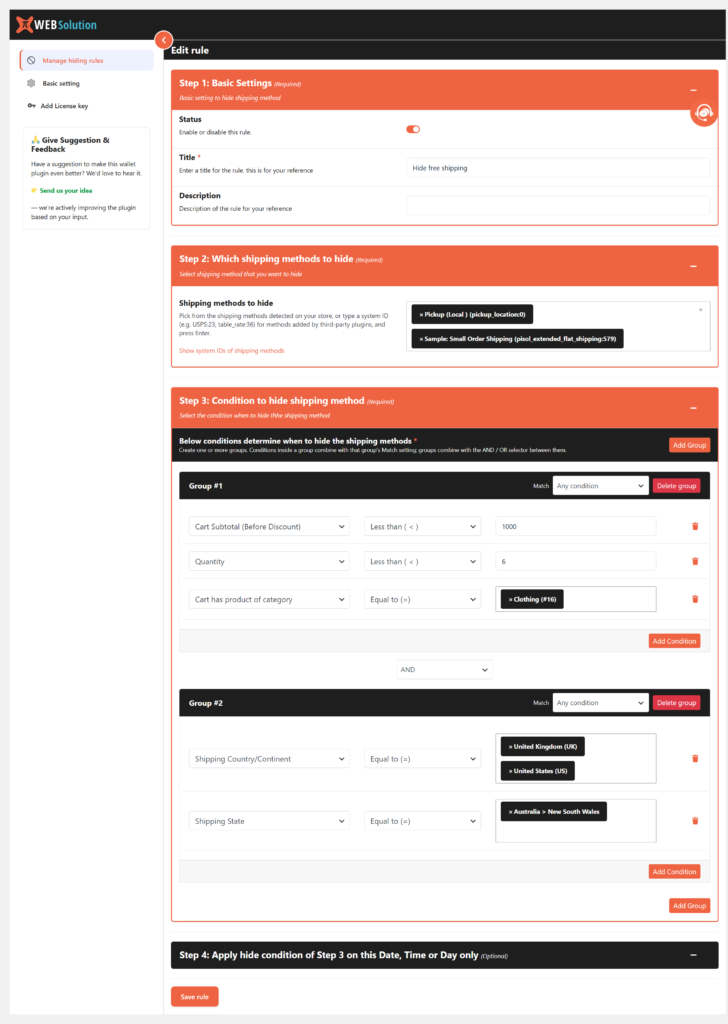
Step 1: Open the rule form
Go to WooCommerce > Hide Shipping > Manage hiding rules, confirm that Advanced Rules is on, and click Add rule. To edit an existing rule, click its Title or the edit button under Actions.
Step 2: Step 1: Basic Settings
| Field | Required | What it does |
|---|---|---|
| Status | No (on for new rules) | On applies the rule. Off keeps the rule saved but skips it. |
| Title | Yes | Your name for the rule, shown in the rules list. |
| Description | No | A note for your own reference, shown in the rules list. |
Step 3: Step 2: Which shipping methods to hide
Select the shipping methods this rule should remove when it matches.
- Detected methods are listed as Zone > Method title with their ID, for example
Flat rate (flat_rate:5). - You can also type the system ID of a method added by another plugin, for example
USPS:23ortable_rate:36, and press Enter. - Matching is exact and case-sensitive.
flat_rate:5does not matchflat_rate:6. - IDs cannot contain spaces or commas.
- To find an ID, open the Basic setting tab and turn on Show System name of shipping method on checkout page, then visit the checkout page as an administrator. The link Show system IDs of shipping methods in this step takes you straight there.
Step 4: Step 3: Condition to hide shipping method
This section is introduced by the text: Below conditions determine when to hide the shipping methods. Here you define when the selected methods are hidden.
Each rule contains one or more groups. Each group has:
- A group header such as Group #1.
- A Match dropdown: All conditions or Any condition.
- One or more condition rows.
- An Add Condition button.
- A Delete group button.
Between groups there is an OR / AND selector, and an Add Group button adds another group.
Step 5: Step 4: Apply hide condition of Step 3 on this Date, Time or Day only (optional)
An extra restriction layer. Everything you set here must also be true for the rule to apply. See Date, Time and Day Restrictions.
Step 6: Save the rule
Click Save rule. For a new rule the page reloads in edit mode; for an existing rule it saves directly.
Validation messages you may see:
- Rule Name cant be empty — the Title field is empty.
- Select at least one shipping method to hide — no method was selected in Step 2.
- You have not added any Selection Rules — no condition with a value was added in Step 3.
Condition Groups and Logic
A rule with several conditions can quickly become confusing. Two controls make the logic clear.
Inside a group: Match
- All conditions — every condition in the group must be true (AND).
- Any condition — at least one condition in the group must be true (OR).
Between groups: OR / AND
The selector in each gap combines the groups, applied from left to right. For example, Group 1 AND Group 2 OR Group 3 means (Group 1 AND Group 2) OR Group 3. A missing selector defaults to OR.
Practical example
Goal: hide flat rate when the payment method is Cash on Delivery or when any coupon is applied.
- Group #1, Match: All conditions — condition: Payment Methods, Equal to (=), Cash on Delivery.
- Between groups: OR.
- Group #2, Match: All conditions — condition: Coupon Applied, Coupon is Applied.
The method is hidden when either group matches. When neither is true, the method stays visible.
Rules to remember
- New rules start with one group set to All conditions.
- A group with no valid conditions is treated as not matching.
- A condition row with an empty value is ignored, not treated as failed. Delete unused rows.
- A rule can have at most 20 condition groups.
Available Conditions
Each condition row has three inputs: the condition name, the comparison, and the value. Conditions appear in the dropdown under headings that match their category.
Shipping Location Related
| Condition | Comparisons | Value |
|---|---|---|
| Shipping Country/Continent | Equal to (=), Not Equal to (!=) | Select one or more countries or continents. Matches the country the customer ships to. |
| Shipping State | Equal to (=), Not Equal to (!=) | Select states as Country > State. |
| Shipping Postcode | Equal to ( = ), Not Equal to ( != ) | Text field. Supports multiple codes, ranges, and wildcards (see below). |
Billing Location Related
| Condition | Comparisons | Value |
|---|---|---|
| Billing Country/Continent | Equal to (=), Not Equal to (!=) | Select countries or continents. Matches the billing address country. |
| Billing State | Equal to (=), Not Equal to (!=) | Select states. |
| Billing Postcode | Equal to ( = ), Not Equal to ( != ) | Text field. Same postcode formats as Shipping Postcode. |
Cart Related
| Condition | Comparisons | Value and meaning |
|---|---|---|
| Cart Subtotal (Before Discount) | Equal to ( = ), Less or Equal to ( <= ), Less than ( < ), Greater or Equal to ( >= ), Greater than ( > ), Not Equal to ( != ) | A number. Compares the cart subtotal before discounts with the number you enter. |
| Quantity | Same six comparisons as above | A whole number. Compares the total quantity of items in the cart. |
| Stock status of product in cart | All product are in stock, There is at least one product on back order | No value to enter. |
| Payment Methods | Equal to (=), Not Equal to (!=) | Select one or more payment gateways. |
| Cart has Coupon | Equal to (=), Not Equal to (!=) | Search and select coupons. Equal to (=) is true when any selected coupon is applied; Not Equal to (!=) is true only when none of them is applied. |
| Coupon Applied | Coupon is Applied, Coupon is Not Applied | No value to enter. Use it to react to any coupon, without naming one. |
| Shipping Class | Equal to (=), Not Equal to (!=), Only have this class product, Must have all the selected class of product, Exactly this shipping class product are in cart | Select shipping classes, including No shipping class. |
Shipping Class options explained:
- Equal to (=) — at least one product in the cart has one of the selected classes.
- Not Equal to (!=) — no product in the cart has a selected class.
- Only have this class product — every product in the cart belongs to one of the selected classes.
- Must have all the selected class of product — each selected class appears at least once in the cart.
- Exactly this shipping class product are in cart — the set of classes in the cart is exactly the set you selected, no more and no less.
Product Related
| Condition | Comparisons | Value and meaning |
|---|---|---|
| Cart has product of category | Equal to (=), Not Equal to (!=) | Select categories. Equal to (=) is true when any selected category is in the cart; Not Equal to (!=) is true only when none is present. |
| Category quantity range | Range | Select a category plus a Min Quantity and Max Quantity. True when the quantity of that category in the cart is between the two values, inclusive. |
| Cart has Product | Equal to (=), Not Equal to (!=) | Search and select products. Equal to (=) is true when any selected product is in the cart; Not Equal to (!=) is true only when none is present. |
| Product tag | Present in cart, Not present in cart | Search and select tags. Present in cart is true when any selected tag is on a product in the cart; Not present in cart is true only when none of the selected tags is present. For variations, the parent product’s tags are used. |
Shipping Method
| Condition | Comparisons | Value and meaning |
|---|---|---|
| Shipping method type | Equal to (=), Not Equal to (!=) | Select from Flat Rate, Free Shipping, Local Pickup, and Pickup Location. Equal to (=) is true when at least one available method is of a selected type. |
| Free shipping availability | Free shipping present, Free shipping not present | Single choice: Excluding local pickup ignores local pickup methods when deciding, Including local pickup counts them. |
A method counts as free shipping when it is the WooCommerce Free Shipping method or its cost is 0, according to the What counts as “Free Shipping” setting.
User Related
| Condition | Comparisons | Value and meaning |
|---|---|---|
| User | Equal to (=), Not Equal to (!=) | Search and select registered customers. |
| User Role | Equal to (=), Not Equal to (!=) | Select roles. The list includes Guest Customer, which matches any logged-out visitor. |
Other
| Condition | Comparisons | Value and meaning |
|---|---|---|
| Day of the week | Equal to (=), Not Equal to (!=) | Select Sunday to Saturday. Uses the site’s time zone. |
Postcode formats
For Shipping Postcode and Billing Postcode, click How to insert multiple post code, range of post code and wildcard post code for the built-in help. Supported formats:
- Multiple codes separated by commas:
4219, 2344, 2345 - Range using
...:4319...4350 - Wildcard using
*:CM2*matches codes starting withCM2 - Combined:
4215, 4210...4250, CM2*, CMN3*
How negative comparisons behave
For product, category, coupon, country, state, user, role, payment, shipping class, and shipping method type conditions, Not Equal to (!=) is true only when none of the selected values matches. The same applies to Product tag with Not present in cart.
Example: if you select three product tags with Not present in cart, the condition is true only when the cart contains none of those three tags.
Date, Time and Day Restrictions
Step 4: Apply hide condition of Step 3 on this Date, Time or Day only is optional. Whatever you set here must all be true, on top of the conditions in Step 3, before the rule is applied.
| Option | Default | Behavior |
|---|---|---|
| Time Range (From, To) | Empty | Empty means no time limit. Only From means the current time must be at or after From. Only To means the current time must be at or before To. Both means the current time must be between them, inclusive. Uses the site time. |
| Date Range (From, To) | Empty | Empty means no date limit. Only From means today must be on or after From. Only To means today must be on or before To. Both means today must be between them, inclusive. |
| Days | Empty | Empty means every day. Otherwise the current day of the week must be one of the selected days (Sunday to Saturday). |
Use Clear under a field to remove its value. Leave all three empty if you do not want a date, time, or day restriction.
Examples
Example 1: Hide flat rate for small orders
Goal: hide flat rate when the cart subtotal is below 199.
| Option | Value |
|---|---|
| Title | Hide flat rate below 199 |
| Status | On |
| Shipping methods to hide | flat_rate:5 |
| Group 1, Match | All conditions |
| Condition | Cart Subtotal (Before Discount), Less than ( < ), 199 |
Result: when the cart subtotal before discount is less than 199, the method disappears from cart and checkout. At 199 or more it stays.
Example 2: Hide local pickup for international orders
Goal: hide local pickup when the customer ships outside your shop country.
| Option | Value |
|---|---|
| Title | Hide local pickup for International order |
| Status | On |
| Shipping methods to hide | Local pickup rate IDs, for example local_pickup:10 |
| Group 1, Match | All conditions |
| Condition | Shipping Country/Continent, Not Equal to (!=), your shop country |
Result: local pickup is hidden whenever the shipping country is not the country you selected.
Example 3: Hide local pickup for fragile items
Goal: hide local pickup when the cart contains a product tagged fragile.
| Option | Value |
|---|---|
| Title | Hide local pickup for fragile items |
| Status | On |
| Shipping methods to hide | local_pickup:10 |
| Group 1, Match | All conditions |
| Condition | Product tag, Present in cart, fragile |
Result: when a product with the tag fragile is in the cart, local pickup is removed. Use Not present in cart instead if you want to hide the method only when the tag is absent.
Example 4: Hide methods for COD or coupon orders
Goal: hide flat rate when payment is Cash on Delivery, or when any coupon is applied.
| Option | Value |
|---|---|
| Title | Hide flat rate for COD or coupon |
| Status | On |
| Shipping methods to hide | flat_rate:5 |
| Group 1, Match | All conditions |
| Group 1 condition | Payment Methods, Equal to (=), Cash on Delivery |
| Between groups | OR |
| Group 2, Match | All conditions |
| Group 2 condition | Coupon Applied, Coupon is Applied |
Result: the method is hidden when Cash on Delivery is chosen or when any coupon is applied. When neither is true, it stays.
Example 5: Use the Basic setting tab instead of a rule
Goal: whenever free shipping is available, show only free shipping.
- Turn Advanced Rules off on the Manage hiding rules tab.
- Open the Basic setting tab.
- Under When “Free Shipping” is available during checkout, select Hide all other shipping method and when “Free Shipping” available.
- Click Save Option.
Result: as soon as free shipping qualifies for the cart, all other methods are hidden.
Important Notes
- Advanced Rules must be on for your rules to apply. When it is off, rules stay saved but are paused, and the Basic setting tab’s free-shipping options take over instead.
- Advanced Rules must be off for the Basic setting tab’s free-shipping options to work. The two systems do not run at the same time.
- Each rule needs a Title, at least one shipping method, and at least one condition with a value.
- Only rules with Status on are applied. The Status switch exists both in the list and inside the rule.
- When several rules match, each removes its own methods. What remains is everything not removed by any matching rule.
- Rules are evaluated for each shipping package separately. If your store splits the cart into multiple packages, a rule can match one package and not another.
- Payment Methods reads the method the customer has chosen. On the cart page, before a payment method is selected, Equal to (=) will not match and Not Equal to (!=) will match. Test this condition at checkout.
- Guest visitors only match the Guest Customer option of User Role. The User condition only matches registered customers.
- Cart Subtotal (Before Discount) and Quantity are checked against the values in the cart before coupon discounts are applied.
- Condition rows with an empty value are skipped. Delete rows you are not using so you can see exactly what your rule does.
- If you delete a product tag under Products > Tags, it disappears from the saved rule. Reopen the rule and select the tag again.
- If you rename or remove a shipping method, its old ID can remain saved in a rule. If the list shows an unknown ID, reopen the rule and reselect the method.
- When the plugin is first activated it may add example rules such as Hide Free shipping on Weekends, Hide Free shipping for orders below $199, Hide Free shipping for Cash on Delivery (COD) order, Hide local pickup for International order, and Hide local pickup for Large order with more than 10 items. They are created with Status off, so they do nothing until you turn them on. Edit or delete them as you prefer.
- Always test as a customer would: open the cart and checkout pages with a matching and a non-matching cart to confirm the method appears and disappears correctly.
FAQ
Where do I find my rules?
Go to WooCommerce > Hide Shipping > Manage hiding rules. The table columns are Title, Description, Shipping Method to Hide, Status, and Actions.
How do I pause a single rule?
Turn off its Status switch in the list, or inside the rule under Step 1: Basic Settings. All other rules keep running.
How do I pause all rules at once?
Turn off Advanced Rules at the top of Manage hiding rules. The rules stay saved and start working again as soon as you turn it back on.
Where do I get the shipping method ID?
Open the Basic setting tab, turn on Show System name of shipping method on checkout page, save, then open the checkout page while logged in as an administrator. The system name appears under each method name. Customers never see it.
Can I hide methods added by another plugin?
Yes. In Shipping methods to hide, type the system ID of that method (for example USPS:23 or table_rate:36) and press Enter. Matching is exact and case-sensitive.
What happens when more than one rule matches?
Each matching rule removes the methods it selects. The methods left on screen are those that no matching rule removed.
Does Not Equal to (!=) require all values to be absent?
Yes for the negative case. Not Equal to (!=) is true only when none of the selected values matches. The same applies to Product tag with Not present in cart.
Do the free-shipping options on the Basic setting tab work with my rules?
Not at the same time. Those options only run while Advanced Rules is off. When Advanced Rules is on, only your rules on the Manage hiding rules tab apply.
Does a rule apply to guest customers?
Yes, if the condition allows it. Use User Role with Guest Customer to target logged-out visitors. The User condition only matches registered customers.
Troubleshooting
The rule does nothing
Check: turn on Advanced Rules, turn on the rule’s Status, and confirm the rule Title appears in the Manage hiding rules list.
The shipping method still shows
Check: the exact rate ID in Shipping methods to hide. IDs are case-sensitive and include the instance number, for example flat_rate:5. Use Show System name of shipping method on checkout page to confirm the ID.
The condition never matches
Check: the Match dropdown (All conditions or Any condition) and the OR / AND selector between groups. Also make sure no condition row has an empty value, because those rows are skipped.
The rule seems blocked by date, time, or day
Check: clear Time Range, Date Range, and Days to test, then add them back one at a time. All restrictions you set must pass for the rule to apply.
The Payment Methods condition fails on the cart page
Cause: no payment method has been chosen yet on the cart page. Solution: select a payment method at checkout and test again.
A postcode condition never matches
Check: the format. Use commas between entries, ... for ranges, and * for wildcards, for example 4215, 4210...4250, CM2*.
The rules list is empty
Cause: no rules exist yet. The table shows There are no rules added yet, add them first. Solution: click Add rule and create your first rule.
A saved rule shows an unknown shipping method ID
Cause: the method was renamed, removed, or replaced after you saved the rule. Solution: open the rule and reselect the method in Shipping methods to hide.
